Overview
Generative AI can make almost anything from a prompt, but a prompt on its own doesn’t know much about you. As Lead Product Designer in the Context and Personalisation team, my work was about closing that gap: giving Canva AI the context it needs to create something that actually feels like yours.
That spanned four areas:
- The plus button. Add your own media to influence outputs, apply your brand so results are on brand, and connect third party apps to bring in context.
- Memory. Canva AI remembers what you’ve told it and personalises its responses based on that.
- Web search. Canva AI can search the web and find sources, so the content it creates is current and relevant.
- Canva file search. Canva AI can find and reference your own content in Canva.
The problem
In research and feedback, the same themes kept coming up. People felt the AI didn’t follow their instructions, ignored their brand, and made it hard to give it the material it needed.
“I have my Brand Kit set up but when I try to tell Canva AI to base designs from it, it does not listen.”
“I can’t attach more than 1 file. It’s not useful to create a lesson plan.”
When we asked people to describe their ideal AI design tool, the most common answer was “a good listener”. They wanted a partner that understood them: one that followed precisely when they had a clear vision, and surprised them when they wanted new ideas.
Our approach
- 01Lean on familiar patterns
Our research showed people already had clear expectations for how features like attachments, memory and web search should work, shaped by the AI assistants from frontier labs they use every day. Rather than reinvent them, we leaned on those familiar patterns so Canva AI felt instantly understandable.
- 02Conversational and smart by default
People shouldn’t need to find the right button to get the right result. They should be able to simply ask, and Canva AI should be smart enough to know when to reach for more context on its own, with explicit controls there when people want them.
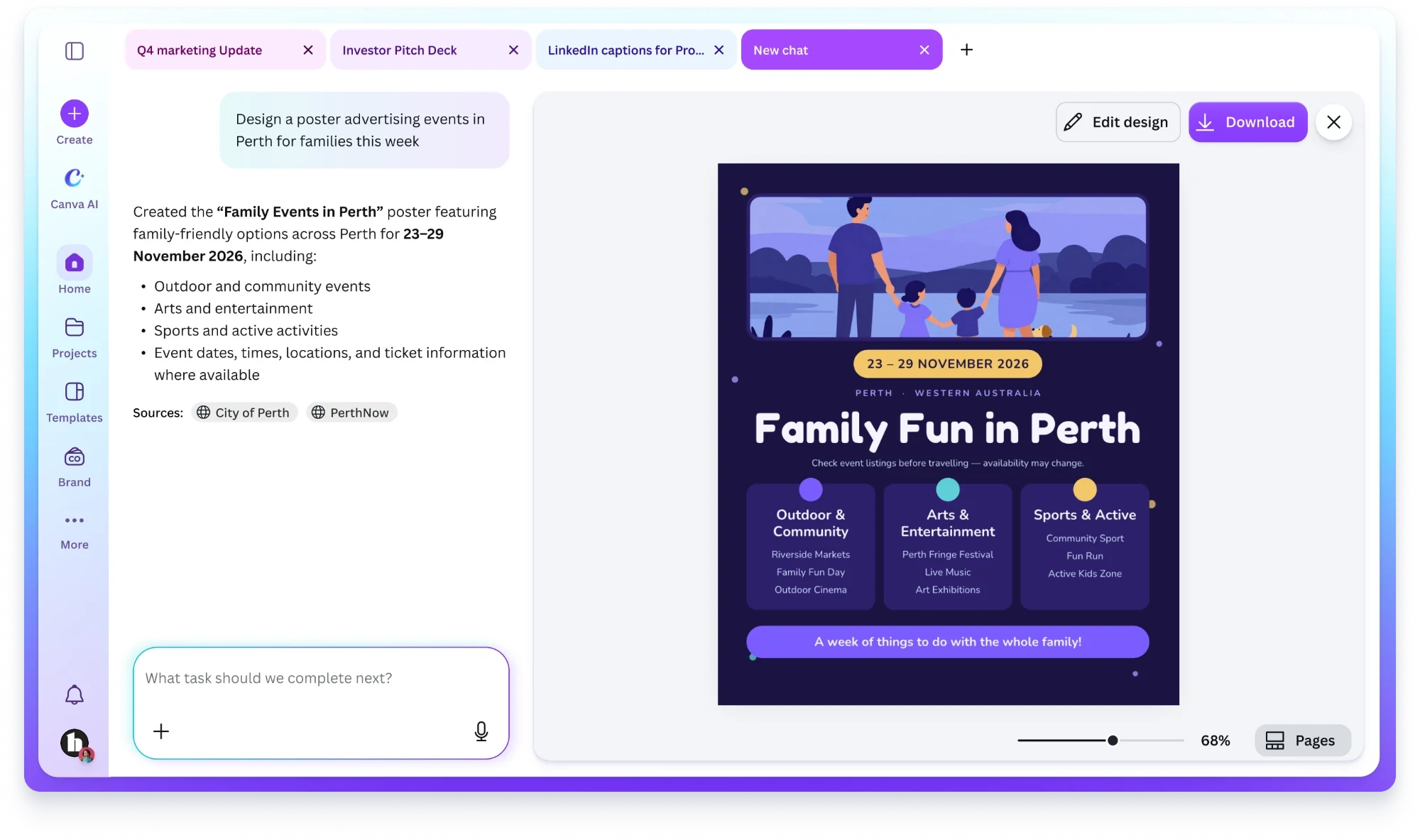
For example, nobody should have to switch on web search to get this right:
The plus button H2 2025
The plus button is how people bring their own context into Canva AI. The original was designed when we had many more technical constraints. It relied on nested dropdowns, wasn’t very visual, and only let people add one thing at a time.
When our generation services could support more, I led the redesign with three goals: make it more visual, cut down dropdowns and clicks, and introduce multiselect. I explored and prototyped two directions, an inline panel inside the chat and a large dialog over the page, and laid out the trade-offs of each so the team could decide quickly. I then aligned attachment behaviour across all five of Canva’s AI surfaces.
The menu brings together three kinds of context:
- Your media. Upload files or add designs and images from Canva to influence what Canva AI creates.
- Your brand. Apply a Brand Kit so results use your colours, fonts and logos.
- Your apps. Connect third party apps to bring in context from the tools you already use.
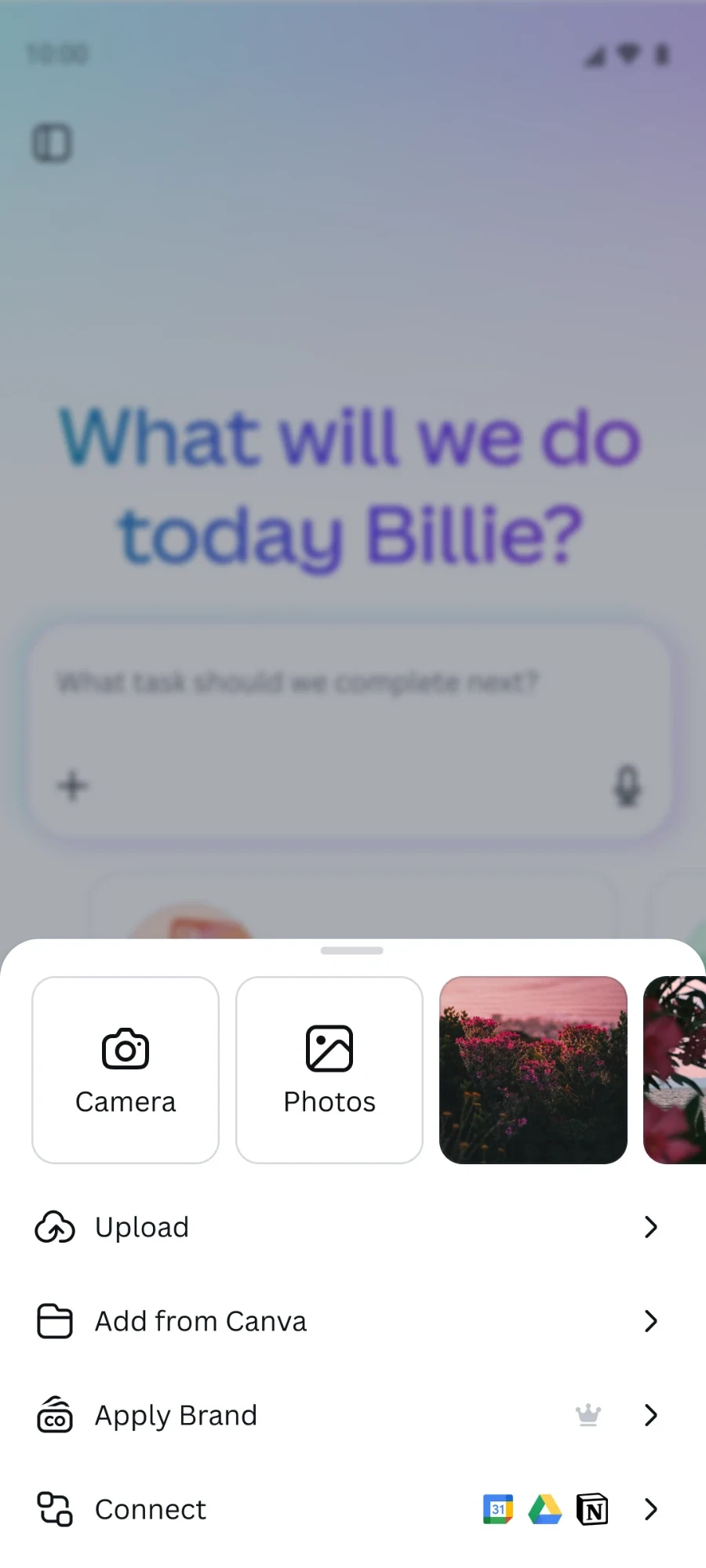
The plus menu on desktop and mobile. We collaborated with Canva’s ecosystem designers on the connected apps UX.
Applying your brand
Brand was one of the most common frustrations, so we made it easy to apply. People can choose a Brand Kit or brand template straight from the plus menu, and Canva AI uses it to create designs that look like theirs.
It works conversationally too. Someone with a Qantas Brand Kit could simply ask Canva AI to “make a social ad for a Qantas flight sale from Sydney to Melbourne”, and it would pick up the right brand and apply it. No menus, no extra steps. It just works.
Web search H2 2025
Web search lets Canva AI go beyond what it already knows. It can find current information, cite its sources, and use them to make the content it creates more accurate and relevant.
Following our approach, the key design decision was making it smart by default. Canva AI decides when a request needs fresh information, like events this week, recent news or real places, and searches on its own. People can always ask it to search explicitly, and the sources it used are always easy to see.
Web search on desktop and mobile. Answers show the sources they used, and people can open them to see more.
Canva file search H2 2025
Many people already have years of work in Canva: presentations, reports, brand assets and past campaigns. Canva file search lets Canva AI find and reference that content, so new work builds on what people have already made.
As with web search, people don’t need to know where something is saved or attach it manually. They can describe it the way they’d describe it to a colleague, and Canva AI finds it.
Memory H1 2026
Memory lets Canva AI remember what you’ve told it, like who you are, what you’re working on and how you like things done, and use that to personalise future responses. You shouldn’t have to repeat yourself every time you start a new conversation.
Memory can get things wrong, so I wanted it to be clear whenever Canva AI is remembering something. When it saves a memory, it says so right in the chat with a “Memory updated” affordance. From there, people can view or delete that memory straight away, so they stay in control without leaving the conversation.
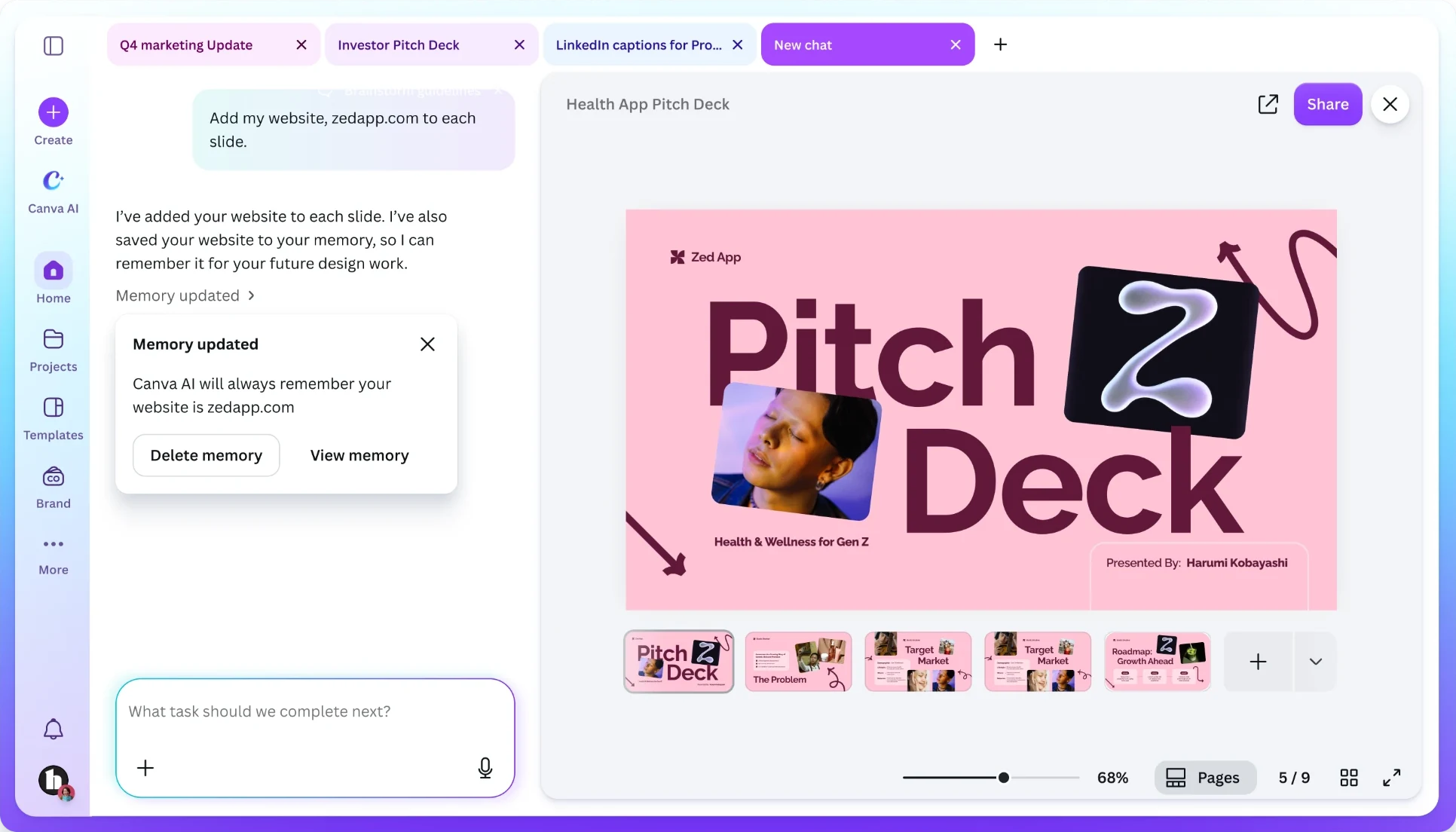
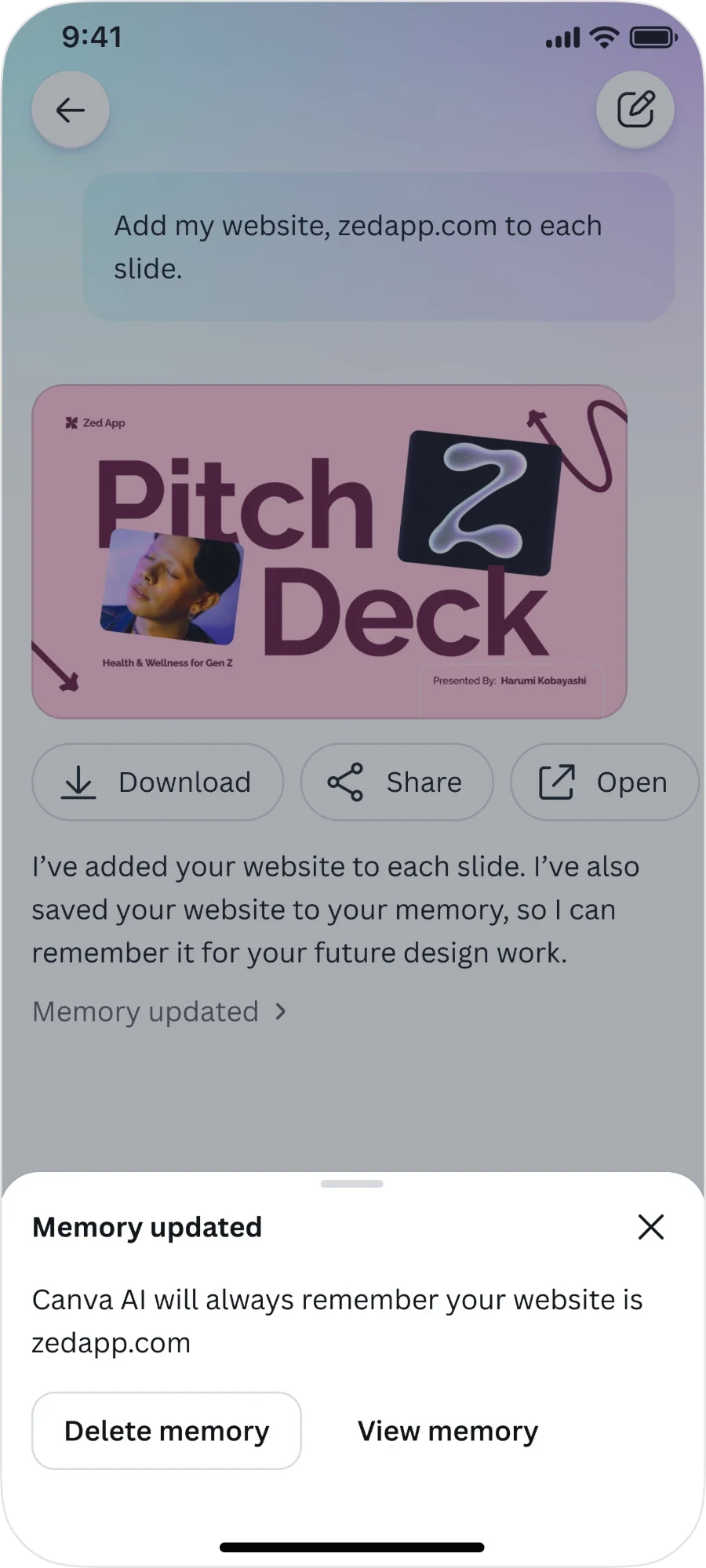
“Memory updated” on desktop and mobile: people can see exactly what Canva AI remembered, and view or delete it from the chat.
The memory library H1 2026
We also designed a memory library, where people can see everything Canva AI remembers about them in one place. Memories are grouped into topics, or “books”, within a library. People can open any book as a doc and edit it easily, giving them direct control over what Canva AI knows about them.
For Memory, I moved from static mockups to working prototypes in code. My memory library prototype became the reference engineering built from. I also worked through some of the trickiest parts of the feature, including sharing, permissions and privacy-sensitive edge cases, while keeping the experience simple for the people using it.
Outcome
Together, these features made Canva AI feel less like a blank prompt box and more like a partner that knows you and your work.
- After the plus button redesign, the share of people attaching media climbed from a plateau of around 15–19% to roughly 40%.
- After we added natural language support for brand, usage of Brand Kits on the Canva AI homepage grew about four times.
- Overall, people perceived Canva AI’s output quality as improving over time, with favourability increasing as these context and personalisation features rolled out.
Reflections
With AI, the input is the product. People judge an AI tool by whether it understands them, so the context they can give it matters as much as the output.
Familiar beats novel. People bring expectations from the AI tools they already use. Meeting those expectations made new capabilities feel obvious instead of something to learn.
Smart by default, in control when it matters. The best context is the kind people don’t have to think about, but they should always be able to see what Canva AI is using and steer it.